You can convert a DOCX file to a QR code for free using two methods:
- by uploading the file directly or
- by sharing a file link.
Most free tools only allow link-based QR codes, but Linko’s free File-to-QR tool lets you upload the actual DOCX file and generate a dynamic QR code — no hosting needed.
 Method 1: Upload DOCX File Directly at Linko
If you want the easiest way to turn your Word file into a QR code without hosting it elsewhere, use linko’s free file QR generator.
Steps to convert DOCX to QR at Linko:*
-
Go to the Create QR section in the dashboard.
-
Select “File” under the Dynamic QR options.
-
Upload your .docx file (up to 5MB supported).
-
Customize the QR code’s color, frame, and logo (optional).
-
Click Generate, then download the QR code.
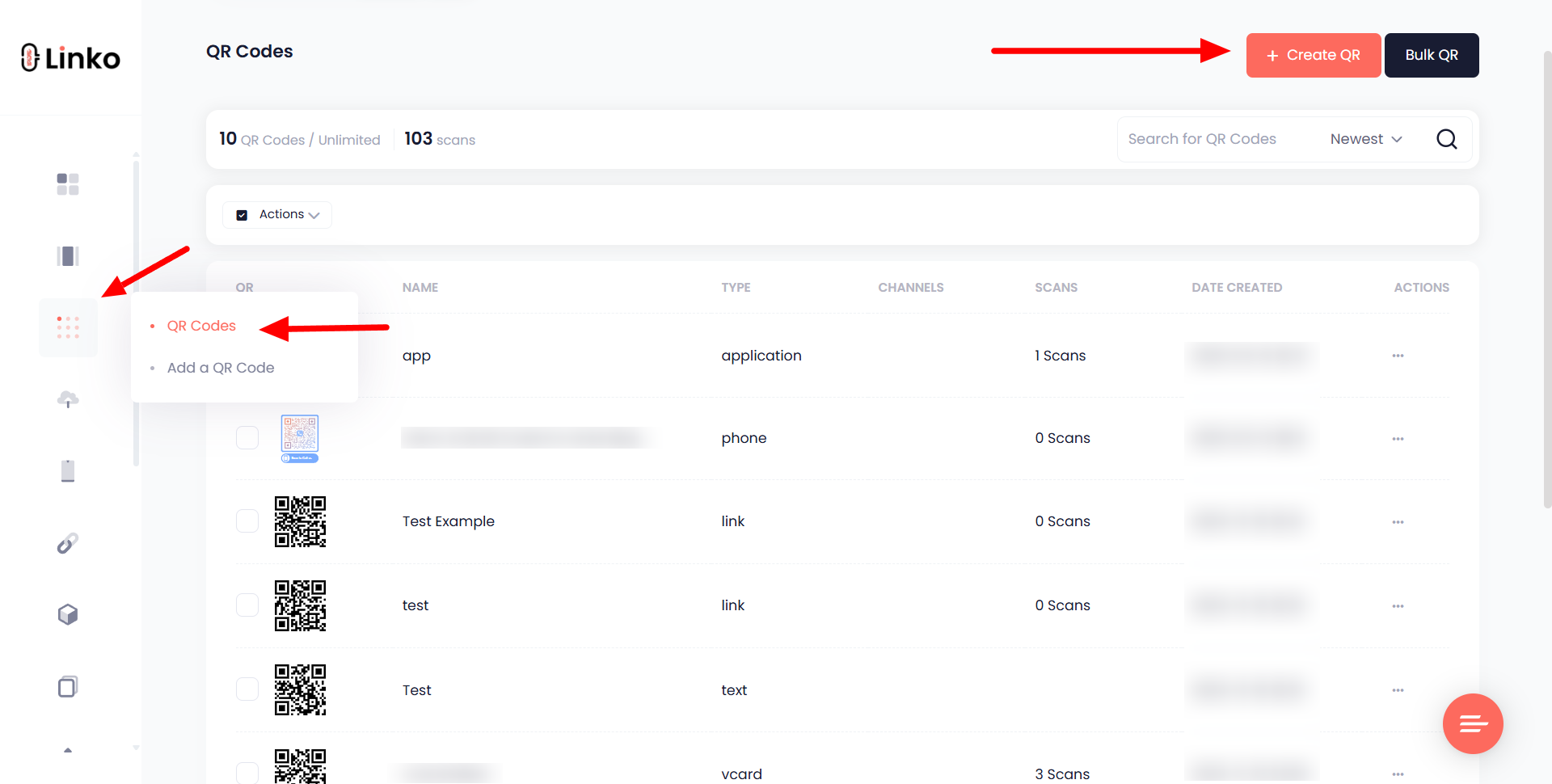
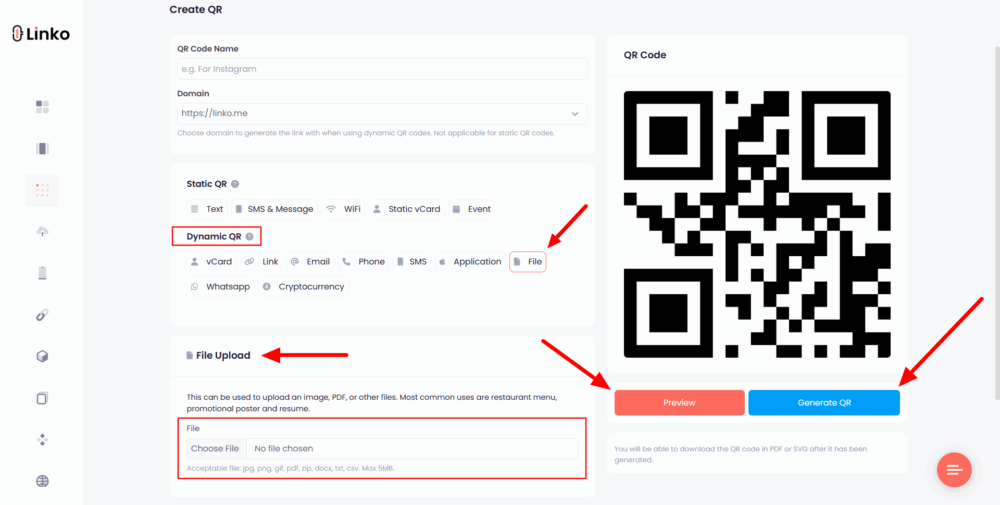
This QR code is editable and trackable and allows you to replace or update the file anytime, making it perfect for resumes, reports, eBooks, or presentations.
Method 2: Use a Shareable Link
If you already have your DOCX hosted online (like on an online Google Doc, Google Drive, or Dropbox), you can create a simple link-based QR code using any free static QR code generator.
How to do it:
-
Upload your DOCX file to Google Drive, Dropbox, or OneDrive.
-
Set the file’s sharing permission to “Anyone with the link can view”.
-
Copy the shareable link.
-
Paste the link into a static QR code generator (like Linko or QR Code Monkey).
-
Customize the design (optional) and download your QR.
This method is quick, but the file link isn’t editable later. You also won’t get analytics or the option to update the file without changing the QR.
 Which Method Should You Use?
-
Use linko’s file QR code if you want full control over the file, dynamic editing, and QR tracking.
-
Use link-based static QR if you already host your DOCX file elsewhere and need a fast one-time code.