You can convert a text file to a QR code for free in 2 simple methods.
You can convert a .txt file to a QR code for free using either an indirect method (by embedding the text) or a direct file upload method like Linko.
Most QR tools don’t support uploading a file directly, but Linko does, with dynamic tracking and download support.
 Method 1: Upload Your Text File to QR Code (Using Linko)
If you want to link the actual file (.txt), not just the text content, Linko’s free File-to-QR tool is the best choice.
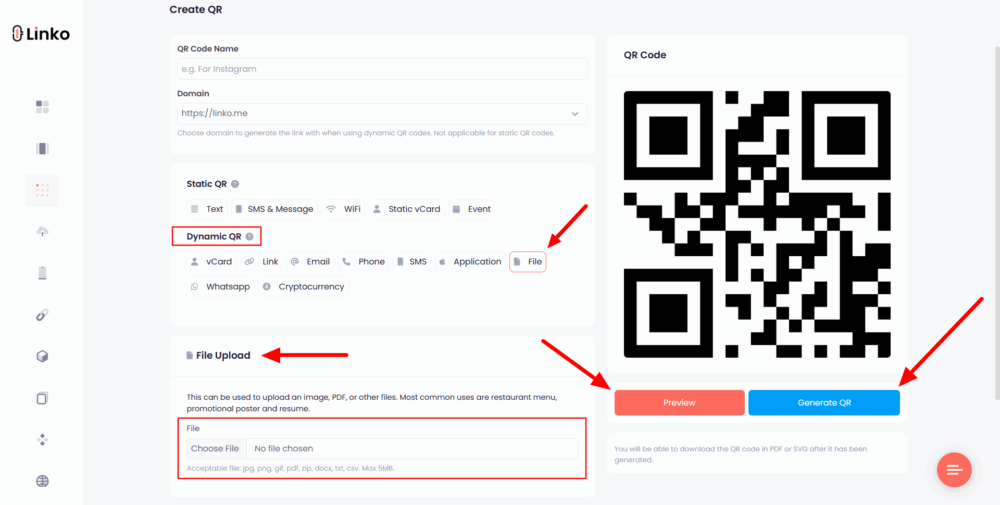
Steps to convert your text file into a QR code at Linko:
-
Sign up for a free account at Linko.
-
Go to the Create QR section in your dashboard.
-
Choose the “File” option under Dynamic QR Code.
-
Upload your
.txtfile (max 5MB). -
Customize the QR design (optional).
-
Click Generate and download your QR code instantly.

Why this method works:
- File stays hosted and downloadable via QR.
- Dynamic QR lets you update or track scans.
- Supports PDFs, text files, images, docs, and more.
Example use cases:
Share a
.txtinstruction manual, log file, CSV notes, or code snippet with customers, students, or team members. Great for print materials, product packaging, or training.
Method 2: Embed Text Directly in a QR Code (Static Text QR)
If your .txt file contains plain text and it’s short, you can copy the text content and paste it into any free text-to-QR converter.
Steps:
-
Open your
.txtfile and copy the text. -
Go to any free QR generator tool like Linko’s QR generator or qr-code-generator.com.
-
Paste the text into the Text field.
-
Customize the style if needed.
-
Click Generate, then download your QR.
Keep in mind:
- This method works best for short content (under 300 characters).
- No hosting, editing, or file downloads, just embedded plain text.
If you need to link an actual file, use Linko’s free file-to-QR feature.
For short notes, quotes, or instructions, embedding plain text works too. Both methods are free, fast, and beginner-friendly.