Does Linko have a workspace feature?
Short answer: yes.
Linko gives you workspaces through its team system. Instead of a separate “workspaces” product, your account works as a shared team workspace that you invite people into — whether they’re teammates or clients.
This guide explains how it works and how to set it up in a couple of minutes.
How workspaces work on Linko
Every Linko user has their own personal workspace (their individual account).
When you invite someone to your account, they join your team workspace while keeping their own personal account separate.
People switch between their personal space and any team they belong to using the workspace switcher in the top bar.
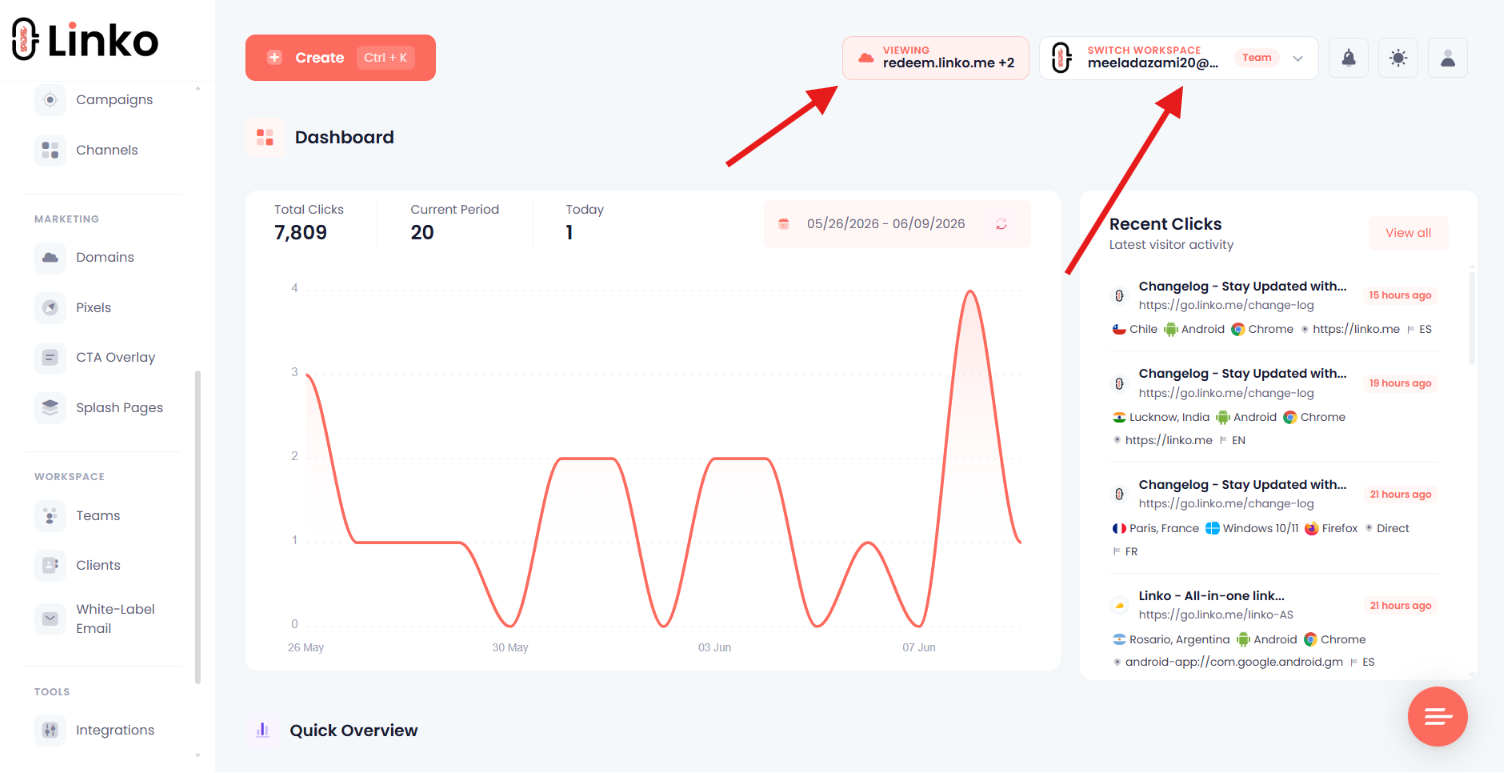
Two ideas make this work:
-
One shared workspace, many members — you (the owner) own the assets; the people you invite collaborate inside your workspace based on the access you give them.
-
Separate logins — each member signs in with their own email and password. You never share your account credentials.
A person can belong to multiple team workspaces and still have their own personal one, switching between them anytime.
What you can control for each member
When you invite someone, you decide exactly what they can do:
-
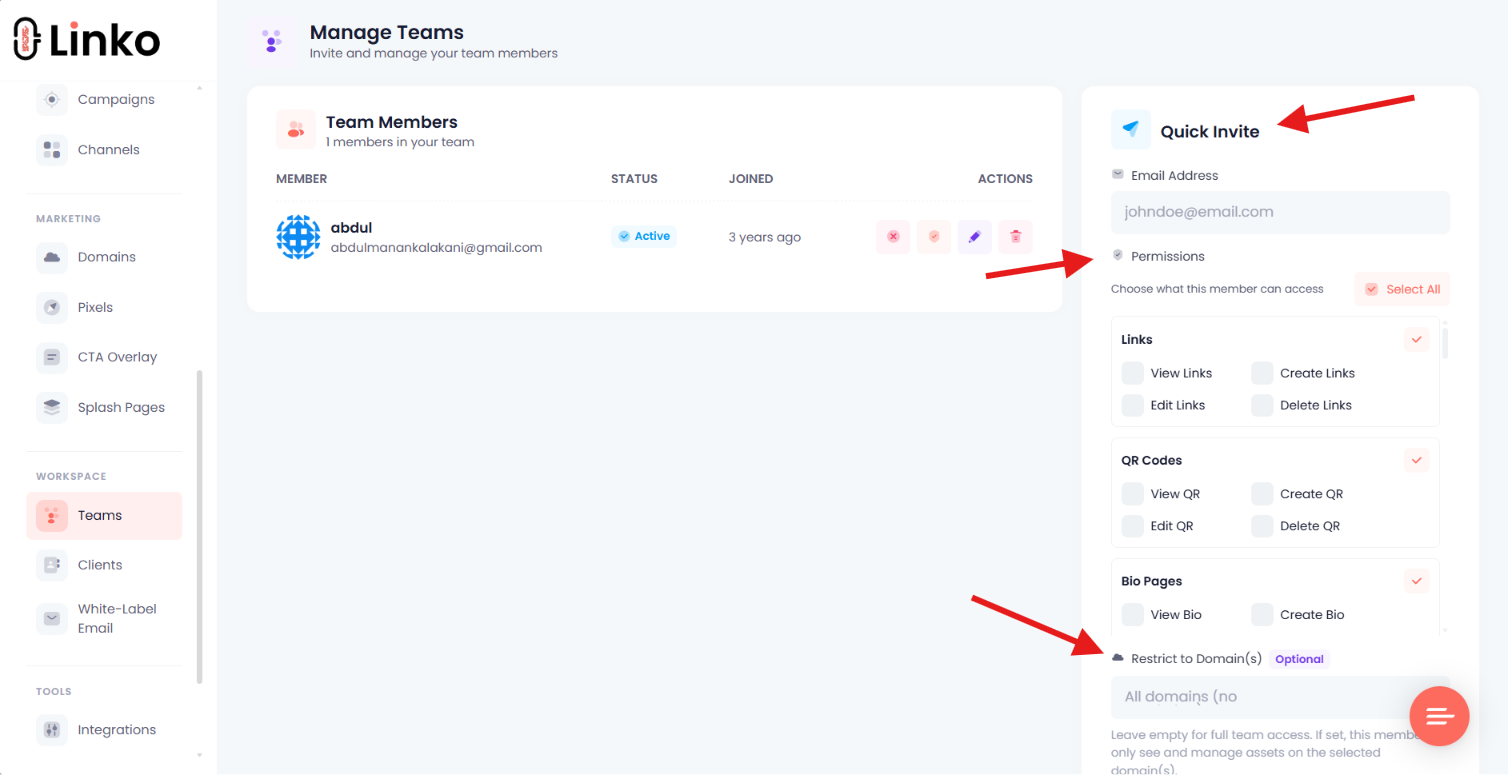
Permissions — grant View, Create, Edit, or Delete per section (links, QR codes, bio pages, files, campaigns, domains, and more). View on its own gives read-only access.
-
Domain access (optional) — restrict a member to specific branded domain(s). They’ll only see and manage the assets on those domains — perfect for giving a client access to just their part of your account.
This is what lets the team system double as a flexible workspace: you can run it as a true team (everyone shares everything) or as isolated client spaces (each person sees only their domain).
How to invite a teammate or client
-
Go to the Team section in your Linko dashboard.
-
Enter the email address of the teammate or client you want to invite.
-
Choose their permissions (what they can view, create, edit, and delete).
-
(Optional) Use Restrict to domain(s) to limit a client to specific domains.
-
Click Send Invite. They’ll get an email to join.
That’s it — once they accept, they can switch into your team workspace and start collaborating.
After they accept
Ask your new teammate or client to:
-
Log in to their own Linko account.
-
Open the workspace switcher in the top bar.
-
Switch from their Personal workspace to your Team workspace.
They’ll then see exactly the sections and assets you’ve allowed — and, if you set a domain restriction, only the assets on their assigned domain(s).
Tips
- Read-only access: Grant only View to let someone see reports without changing anything.
- Client portals: Combine a domain restriction with limited permissions to hand a client a clean, scoped view of just their links and stats.
- Change access anytime: Edit a member’s permissions or domains whenever you need; you can also disable or remove a member.
- Privacy: Members can’t see each other’s email, and certain assets (campaigns, channels, pixels, CTA overlays, and templates) follow a “shared by owner + your own” rule, so members don’t see one another’s private items.
Is this available on the free plan?
No. The team/workspace system is a premium feature, available on the paid plans.